Unexpected or Invalid Content Block Error
This guide explains the “This block contains unexpected or invalid content” message that can appear on blocks in the WordPress editor, and walks through the quickest way to clear it. The error is editor-only, so your live site keeps rendering correctly while you fix the affected blocks.
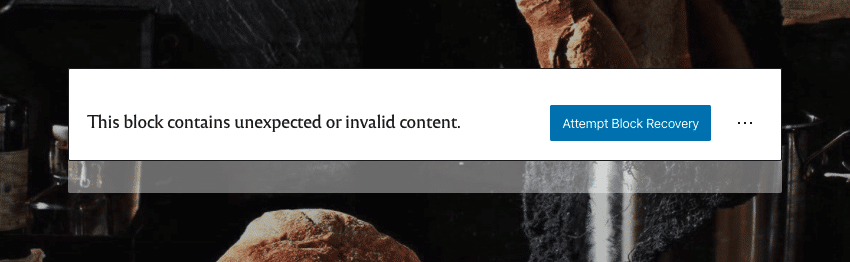
The message typically appears after updating WordPress core, your theme, or a plugin, and points to a mismatch between the saved block markup and what the block now expects. It almost always has one of two causes:
- The block’s HTML was edited through the Code editor and the manual change introduced a syntax issue.
- A WordPress, theme, or plugin update refined the block’s markup, and the saved version needs to catch up to the new structure.
For the broader decision tree covering related block and editor failures, see Block errors and editor troubleshooting.
Fixing the unexpected or invalid content block error
In both scenarios above, the same one-click fix works in the vast majority of cases. The editor rebuilds the block from its current definition, which clears the warning without touching your content.
- Select the affected block in the editor.
- Click Attempt Block Recovery in the warning banner.
- Confirm the block re-renders correctly, then save the page or post.
If Attempt Block Recovery does not clear the warning, continue with the broader checks in Block errors and editor troubleshooting.
Fixing all affected blocks across the site
When the same updated block is reused across many pages and posts, the same warning tends to surface in each place. There is no bulk recovery tool in the WordPress editor, so each instance needs to be recovered individually using the steps above.
Because the warning is editor-only, your live site continues to render normally in the meantime. It is safe to fix blocks gradually as you edit each page or post, rather than stopping everything to clean them up in one pass.