How to translate your WordPress website
WordPress comes with a lot of great benefits. One of them is the fact that it is fully translated into over 169 languages. If, for example, your website targets Spanish speakers, this can be very important.
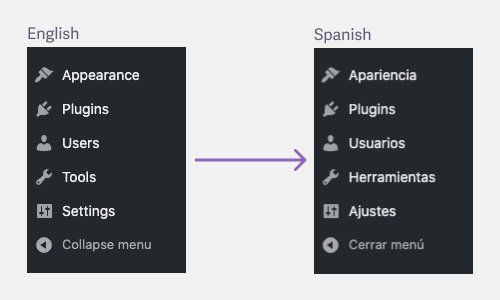
You should know that changing the WordPress language from the **Dashboard → Settings → General** area is not enough. Different parts of posts, pages, menus, or widgets make up the website's structure and all need a bit of work. The content from those sections can be added directly to your language. However, there are other text strings attached, both from the theme and plugins, that you need to manually translate.
Let's take the following scenario: you have a food blog, and at the end of each article, you can have a Read more call to action that encourages readers to click the blog post. To facilitate access, you should translate those specific words into your native language.
Have no worries. In this article, we're going to walk you through:
- How to translate your WordPress interface
- How to translate your WordPress theme and plugins
- How to create a multilingual website
A note on your theme: Your Pixelgrade LT site is built on Anima, a
block theme. Everything in this guide is theme-agnostic and works the same
across every Pixelgrade LT site. When it's time to **add a language switcher
to your menu, you'll do it in the Site Editor** — that step is covered
below.
How to translate your WordPress interface and admin screens
The good thing about using one of the most popular pieces of software to create a website is the massive community support that keeps growing. Therefore, WordPress translations are already available at the click of a few buttons.
Easy steps to translate your WordPress interface
- Go to the WordPress dashboard.
- Navigate to Settings → General.
- Under the Site Language tab, use the drop-down menu to select the language
you need.
What gets translated when you switch the default WordPress language?
Switching the language means you'll translate everything displayed in the WordPress dashboard.
As an example, we chose "Spanish" for the site language, which means "Settings" will now display as "Ajustes." The same goes for other areas of the dashboard.
Note that translating your WordPress interface does not influence the content that you write in posts or pages. Almost everything your visitors will see will stay the same.
There are a few exceptions of dynamic strings that come from themes and plugins, like the blog post date and part of the blog posts comments section, that need a few more steps to change. Find out how below.
—
How to translate your WordPress theme and plugins
WordPress themes are responsible for most of what visitors see on the website. The good thing is a big part of what's displayed is fully editable within the WordPress interface: the content on a page, blog posts content, page name, and so on.
Therefore, a great deal of translation is done by default when building pages and posts. For example, naming the "About" page "Acerca" is a step towards a translated website.
Except for the areas where you control the content 100%, there are others built in the theme that might not be directly editable. Some examples are:
- the search text and placeholders.
- the "read more" links below blog posts.
- titles for various taxonomy like categories or tags.
When it comes to WordPress plugins, it all depends on the plugin you're using and its impact on the live website — what the plugin displays publicly to your audience.
For example, image optimization plugins are for your use and don't display information to visitors. On the other hand, e-commerce plugins like WooCommerce generate digital stores on your website, which means a lot of information becomes visible to those visiting.
Some plugins can have translations already available, while others need one from scratch. In the case of WooCommerce, and due to their popularity and community support, there are a lot already available.
1. Choose a translation plugin
The best option is to choose a trustworthy translation plugin. Our recommendation is TranslatePress because it:
- has an easy to use live preview editor to see your changes instantly;
- allows translating anything on your website like themes, plugins, pages, posts,
- follows all the SEO principles so your translated pages will be able to rank in
- offers automatic translations using Google Translate to get a head start.
categories, tags and more, all within the same interface;
search engines;
2. Install the translation plugin
- From the WordPress dashboard navigate to Plugins → Add new.
- Search for TranslatePress, then click Install Now and then Activate.
- Upon activation, you need to go to Settings → TranslatePress to customize
the plugin settings.
3. Translate your entire website
- From the WordPress dashboard, navigate to **Settings → TranslatePress →
- In the tab that shows up, change the Default Language to the one you need.
- Leave the All Languages tab as is. This tab is useful when you want to add
- Scroll down to the Language Switcher settings and uncheck the **Floating
General**.
a second language between which visitors can easily switch. If that's the case, skip to the part about [creating a multilingual website](#how-to-create-a-multilingual-website).
language selection** option to hide the language switcher.
Next, proceed with translating the content:
- Navigate to a page where you have elements that need translation and click the
- Hover over those elements and add the translations.
Translate site button in the WordPress admin bar.
Once you translate a particular string (e.g., the "Next" text from the top menu), all similar strings will benefit from it. Plus, TranslatePress can translate all areas of a website, no matter if a text comes from a plugin or a WordPress theme.
Bonus tip: when it comes to strings that contain HTML, our recommendation is to copy-paste the non-translated version and replace the text while leaving the HTML intact.
Note: if you want to unlock more options from the TranslatePress plugin, you can go PRO.
—
How to create a multilingual website
Having a multilingual website means that your website is available in more than one language between which visitors can easily switch.
It's good to know that doing this involves a bit of effort, but many great perks make it pay off. Among them are:
- Expand your reach – whether you blog or sell something online, a new
- Improve your SEO – people tend to search in their native language, so you
- Increase the number of customers – since people won't have trouble
- Get more people through the door – a good example is a restaurant based in
language opens the door to other people who wouldn't otherwise be able to read your content.
can seize this opportunity to rank for keywords that your competitors don't target.
understanding what you're selling, you can increase the number of sales from other countries.
a popular vacation spot where people from all over the world come to visit. Or a business that targets people from a country with more than one official language; for example, Switzerland has four official languages: German, French, Italian, and Romansh.
If your website can be a good source of information for users who speak different languages, it's a loss not to make it accessible to them. If you invest a lot of time and energy to write valuable content, you should try to make it as available as possible.
WordPress is benefiting from such a big community, and that makes translating a WordPress theme as easy as installing a multilingual translation plugin. These tools can help you not only install and use other languages but also to localize your translations.
1. Localize your website translations
While translations mostly focus on conveying a message or literal meaning of the original content (like-for-like copy of the original), localization means adapting to the specifics of a particular language, business, or audience.
A few good examples of localization are:
- writing a date: 07/12/1998 can suggest "12th of July" in the US and "7th of
- writing numbers: 1,245 means one-thousand-two-hundred-forty-five in the US and
- writing about money: $20 is the standard in the US, 20$ in Europe
- following various GDPR guidelines when addressing people from Europe, and so on.
December" in Germany
one point two-four-five in the UK
All of this localization can happen with the help of translation plugins, which allow you to edit your content and adapt it to the specifics of a country or language.
2. Make your website available in multiple languages
TranslatePress is here to help once again; just follow the steps below:
- Go back to Settings → TranslatePress → General.
- Under the All Languages tab, click on the Choose button and search for
- Scroll to the bottom of the page and click Save changes.
- Navigate to a specific website page and click on the Translate site button
- Hover over the text, click the blue pencil icon and start adding
the desired language. Once you found it, click on Add.
in the WordPress admin bar.
translations.
3. Create and customize the language switcher
There are several options to choose from when you want to display the language switcher. To see those options, go to Settings → TranslatePress → General.
- Native language name – here, you can control how the language names display
- Use a subdirectory for the default language – use this option if you want
- Language Switcher – customize how you want to display the language
on your website. If you choose No, the additional language, for example "Spanish," will show as "Spanish"; if you choose Yes it will be displayed as "Español."
your website's primary language to have an URL. For example, if the website is in English, it will be available at example.com/en/.
switchers: with flags, short name (e.g. en for English, es for Spanish), full name, etc.
4. Add the language switcher to your site
Your Pixelgrade LT site is built on Anima, a block theme, so you edit your menu in the Site Editor. Choose whichever of these two ways fits you best.
Option A — Use the floating switcher (simplest). In **Settings → TranslatePress → General, under the Language Switcher** settings, keep the floating language selection option enabled. TranslatePress then shows a small switcher in a corner of every page — no menu editing required.
Option B — Add the switcher to your header in the Site Editor. If you'd rather place the switcher next to your navigation:
- From your dashboard, go to Appearance → Editor to open the **Site
- Open your Header template part (the area at the top of every page).
- Click the block inserter (the + button) and add TranslatePress's
- Click Save in the top-right corner, confirm the Header template part
Editor**.
Language Switcher block beside your Navigation block. (Prefer a markup-free route? Add a Shortcode block and paste [language-switcher] instead — both produce the same switcher.)
is ticked, and Save again.
Tip: To change how the switcher looks (colors and fonts), remember that
your site's appearance comes from its design system. You can adjust site-wide
colors and fonts in Pixelgrade → Design System (choose
Open Style Manager). TranslatePress also has its own switcher-appearance
options under Settings → TranslatePress if you want to style the switcher
specifically.
—
Conclusion
Since most themes and plugins are in English by default, translating them is essential if you want readers to understand everything while browsing.
But besides pure translation, our recommendation is to use this translation process as a way to share a bit more of who you are with the world. This is your chance to be creative.
Who says that the "Next article" button should be translated like-for-like? Maybe there's a fun way of naming it that can make your website truly unique and improve the browsing experience and engagement.
All of these bits and pieces of text on your website can be categorized as microcopy. The way you customize the microcopy is essential because it impacts your visitors' experience. At the same time, it allows you to express your personality and style, so don't be afraid to leverage it. These tidbits are a great chance to reveal who you are and what people could expect to be treated on your website.
If you are interested in learning more about how you can adapt the text on your website to match your personality, give this article a try: [How the microcopy of your site impacts your visitor's experience](https://pixelgrade.com/blog/writing/how-the-microcopy-of-your-site-impacts-visitor-experience/).
—
Need a hand?
If you get stuck, open Pixelgrade → Help to search the documentation or reach support.